IB Broker Login: Fast Fixes and Shortcuts
Featured image: IB Broker Login: Fast Fixes and Shortcuts
When you’re an active options trader, “ib broker login” is not just a housekeeping task. It’s the first link in your execution chain. If you can’t get into Interactive Brokers (IBKR) quickly and reliably, you miss fills, lose pricing, or get forced into last-second decisions right when spreads are widest.
This guide is a practical, speed-first playbook: what to check in 60 seconds, the fastest fixes for common IBKR login failures, and a few workflow shortcuts that reduce friction for day traders and scalpers using an options trading platform all session long.
First, make sure you’re logging into the right thing
IBKR has multiple “logins,” and mixing them up is a surprisingly common cause of wasted time.
| Login target | What it’s used for | Common gotcha | Fast fix |
|---|---|---|---|
| Client Portal (web) | Account management, settings, funding, reports, permissions | Browser issues, cached sessions, wrong region/domain | Try a private window, then sign in again |
| Trader Workstation (TWS) | Full desktop trading platform from IBKR | Old version, blocked by firewall, 2FA prompts | Update TWS, confirm 2FA device works |
| IB Gateway | Lightweight login session often used for API-based options trading software | API settings not enabled, port mismatch | Enable API access and confirm the configured port |
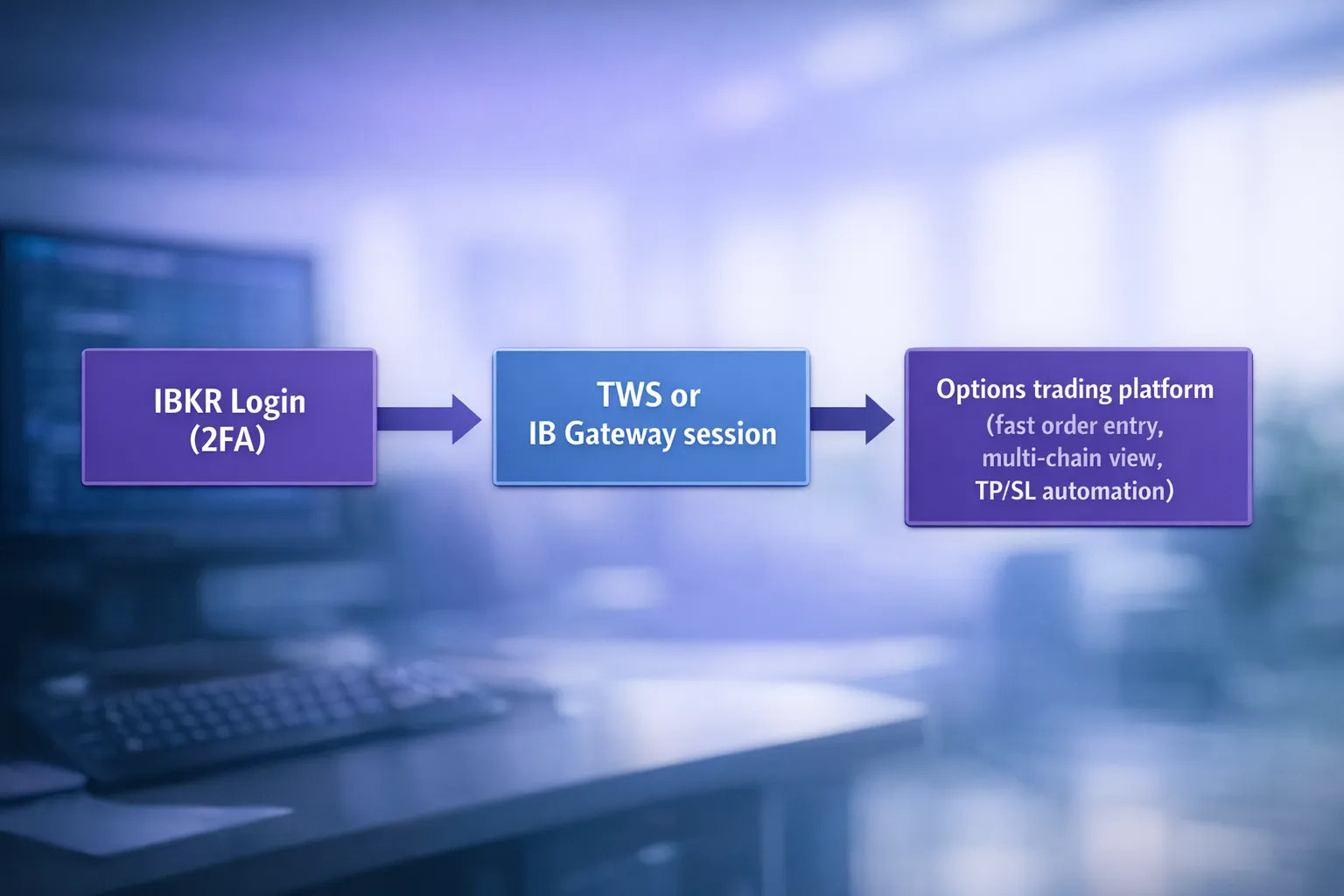
If you use third-party options trading tools that integrate directly with IBKR, the application usually does not replace your IBKR credentials. It connects to TWS or IB Gateway, which must already be running and authenticated.
For example, NeonChainX is a fast options trading platform for Interactive Brokers users that connects directly to TWS or IB Gateway. If your IBKR session is not up, your options trading software will feel “broken” even though the real issue is simply authentication upstream.
The 60-second “don’t overthink it” login checklist
Before you reset passwords or reinstall anything, run this quick triage. Most login failures are basic, and basic fixes are the fastest.
- Confirm you’re using the correct username (many traders accidentally use an email address or an old paper-trading login).
- Check Caps Lock and keyboard layout (especially on laptops that switch layouts).
- Try a different network (mobile hotspot for 2 minutes can isolate a local DNS or corporate firewall issue).
- Disable VPN temporarily (some VPN endpoints get flagged, or introduce session instability).
- Check whether IBKR is having a service event by visiting the official IBKR site or the IBKR Knowledge Base.
- Make sure your phone time is correct (2FA can fail if the device clock is off by a lot).
If you’re actively trading and this is happening near the open, the goal is not a perfect diagnosis. The goal is fastest restore of access.
Fast fixes for the most common IBKR login problems
Below are the highest-frequency failure modes and the quickest safe response.
“Invalid username or password”
Most common causes
- Typo, Caps Lock, or wrong saved credential
- Using the wrong username (live vs paper, individual vs advisor, old account)
- Password manager filling an outdated entry
Fast fixes
- Re-type the username manually once (don’t trust autofill on the first try).
- If you recently changed credentials, update your password manager entry immediately.
- Use the official password reset path from IBKR (avoid any links from email or search ads).
Security note: Don’t keep “temporary passwords” in plaintext notes. If you trade frequently, a password manager is both faster and safer.
“Account locked” or repeated failed attempts
Most common causes
- Too many attempts during a rushed pre-market login
- Multiple devices trying to authenticate with stale credentials
Fast fixes
- Stop attempting rapid retries. That usually makes lockouts worse.
- Use the official unlock or recovery process, or contact IBKR support.
- If you share a workstation (prop desk, office), confirm nobody else is trying to log in to your account at the same time.
Two-factor authentication (2FA) failures (IB Key / challenge response)
2FA issues are the #1 reason traders lose time during an ib broker login.
Most common causes
- IBKR Mobile is logged out or not receiving push prompts
- Phone has restricted notifications or battery optimization killing background processes
- Device time drift
- You upgraded phones and didn’t fully migrate authentication
Fast fixes
- Open the IBKR mobile app directly (don’t wait for a push) and complete the authentication from inside the app.
- Turn off battery optimization for the IBKR mobile app.
- Confirm your phone is set to automatic time and time zone.
- If you recently changed devices, use IBKR’s official process to re-enroll authentication.
For official guidance, start with the IBKR Knowledge Base and search for “IB Key” and “two-factor authentication.”
Web login loops, blank pages, or “stuck” sessions (Client Portal)
Most common causes
- Corrupt cookies, blocked third-party cookies, or aggressive browser privacy extensions
- Multiple IBKR tabs open with conflicting sessions
Fast fixes
- Use a private/incognito window.
- Temporarily disable privacy extensions for the login attempt.
- Clear site data for Interactive Brokers only (not your whole browser).
- Try a different browser for the session (Chrome, Firefox, Safari).
If you trade from a locked-down corporate machine, Client Portal can fail while TWS works (or the opposite). Switching the login surface is often the fastest fix.
TWS won’t log in, freezes at startup, or never completes authentication
Most common causes
- Outdated build
- Local firewall or endpoint security blocking components
- System resources exhausted (too many charts/scanners, low RAM)
Fast fixes
- Update TWS to the latest stable build.
- Reboot once (yes, really). A restart clears a surprising number of stuck Java or network states.
- If you’re on a managed machine, whitelist TWS with IT.
If you’re a scalper or day trader who only needs IBKR as a session endpoint for low latency options execution through external tools, consider using IB Gateway rather than a heavy TWS layout.
“Third-party app can’t connect” (API connection problems)
This shows up as “not connected,” “connection refused,” or “no data,” even though your login is fine.
Most common causes
- API access not enabled in TWS or IB Gateway
- Wrong host/port or wrong environment (live vs paper)
- Trusted IP restrictions enabled
- Two sessions fighting (TWS and Gateway on the same machine with overlapping ports)
Fast fixes
- Confirm API is enabled in your TWS or IB Gateway settings.
- Verify the configured host and port match what your tool expects.
- Close one session if you have both TWS and IB Gateway running.
If you’re setting up NeonChainX specifically, use the exact steps in the official setup guide: Getting Started with NeonChainX.
A speed-focused login workflow for active options traders
If you trade actively, you want fewer “login events” per week, not faster typing during emergencies. The best shortcut is a workflow that stays stable.
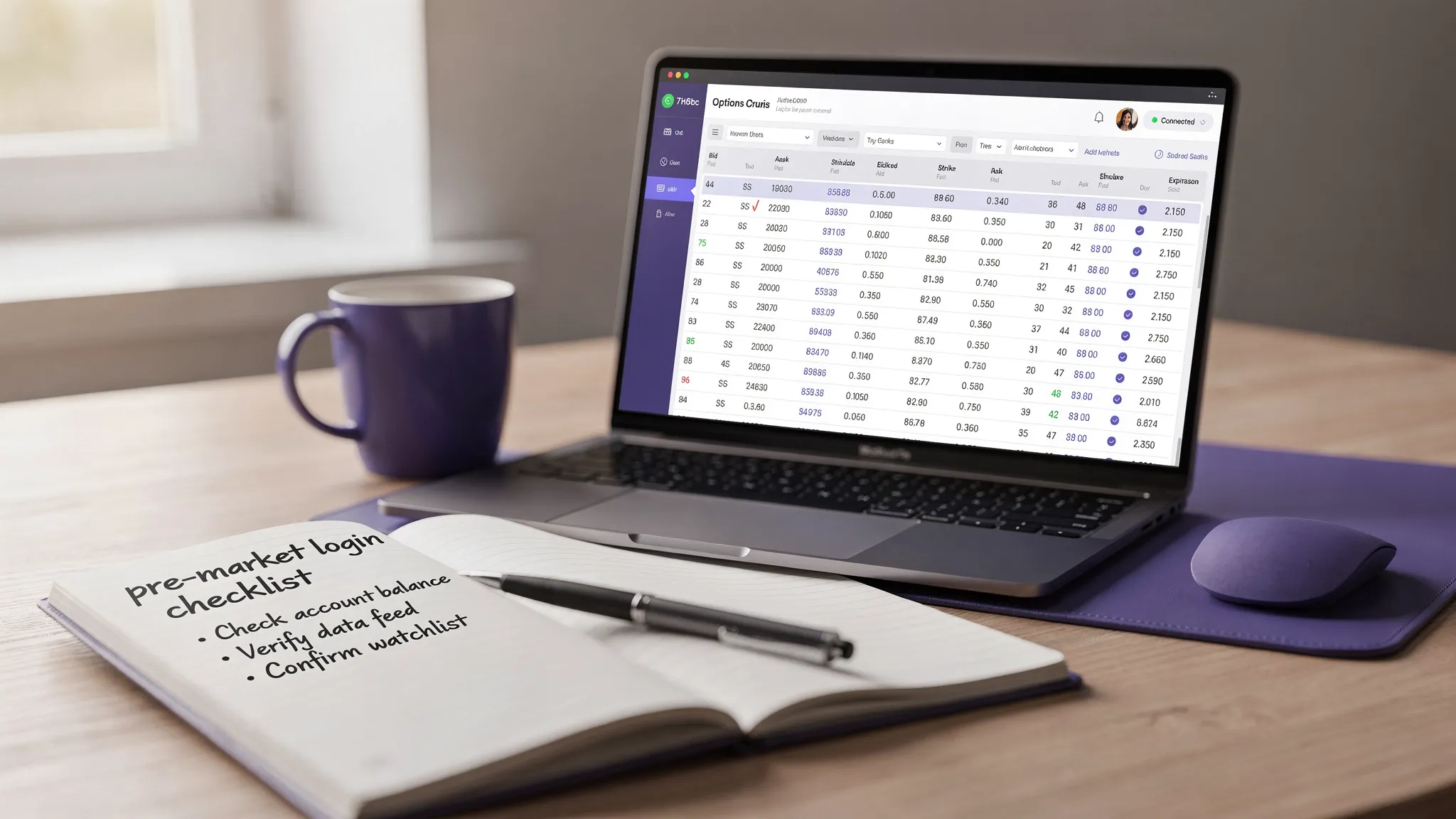
Treat “authenticated + connected” as part of your pre-market checklist
Build a habit: you’re not “ready” until your trading session is authenticated and stable.
A practical flow many active traders use:
- Authenticate early enough to absorb a 2FA hiccup without emotional decisions.
- Confirm you can see live quotes for a liquid symbol you trade.
- Place a harmless test action in a paper environment when you update anything (new OS update, new router, new laptop).
This matters even more for fast options trading, because the first minutes after the open tend to combine wider spreads, faster underlying movement, and higher decision load.
Keep your “execution chain” short
Speed is rarely only broker-side. It’s often workflow-side.
If your goal is options trading with low latency, you generally want:
- A stable, authenticated IBKR session (often via IB Gateway for API workflows)
- A purpose-built, options-focused interface
- Minimal context switching (fewer windows, fewer dialogs, fewer clicks)
That’s the niche where tools like NeonChainX fit: a desktop options trading platform designed around multi-chain options view, fast order entry, and one-click automated TP/SL for options once the IBKR connection is live.

Avoid “silent latency” traps caused by login friction
Login problems often trigger bad trading behaviors that create hidden costs:
- Chasing entries because you lost your intended fill while locked out
- Using market orders in thin chains because you’re behind (slippage)
- Skipping your stop plan because you’re rushing
If you want to go deeper on the execution side after you fix login stability, see: Trading Execution: Cut Latency, Fill Faster.
Post-login checks that save you from expensive surprises
Getting in is step one. Confirming your environment is correct is step two.
1) Verify you’re in the right account (live vs paper)
It sounds obvious, but it happens constantly, especially when traders bounce between testing and live.
A simple discipline: check the account label every session before you place the first options order.
2) Confirm your options permissions and market data
If chains look “frozen” or pricing looks wrong, you might be missing market data subscriptions or viewing delayed quotes.
Fast check:
- Pull up a highly liquid options chain (for example, a major index ETF) and confirm quotes update.
- If it’s delayed or missing, review your IBKR market data subscriptions and permissions in Client Portal.
3) Confirm risk controls are actually in place
For traders using IBKR options trading automation or bracket-style risk management, verify your intended behavior once per session.
If you use NeonChainX for one-click TP/SL automation, review the platform’s TP/SL configuration and triggers here: Take Profit and Stop Loss Configuration in NeonChainX.
Security shortcuts that are fast and safe (and what to avoid)
When traders search “ib broker login,” they’re often stressed. That’s exactly when phishing works.
Safe shortcuts:
- Bookmark the official Interactive Brokers site and use the bookmark.
- Use a password manager so you don’t train yourself to type credentials into random lookalike pages.
- Prefer app-based authentication (IBKR Mobile) over weaker recovery paths when possible.
What to avoid:
- Don’t click login links from ads.
- Don’t rely on “IBKR login” results that don’t clearly point to Interactive Brokers domains.
- Don’t share 2FA codes or approve pushes you did not initiate.
For official security and login troubleshooting articles, start at the IBKR Knowledge Base.
Putting it together: the fastest path back to trading
When login breaks during a trading day, speed comes from a repeatable sequence:
- Identify the login surface (Client Portal vs TWS vs IB Gateway).
- Run the 60-second checklist (network, VPN, 2FA app, browser session).
- Apply the specific fix for the symptom (2FA, cached session, outdated TWS, API setting).
- After you’re in, do a 30-second validation (right account, live quotes, permissions).
Once IBKR is stable, your choice of options trading platform determines how quickly you can act. If you’re optimizing for low latency trading and a cleaner workflow, NeonChainX is designed to sit on top of your authenticated TWS or IB Gateway session with a multi-chain options view, real-time options P&L tracking, and fast execution built for professional options traders.