Too many TWS clicks
when you buy the contracts?
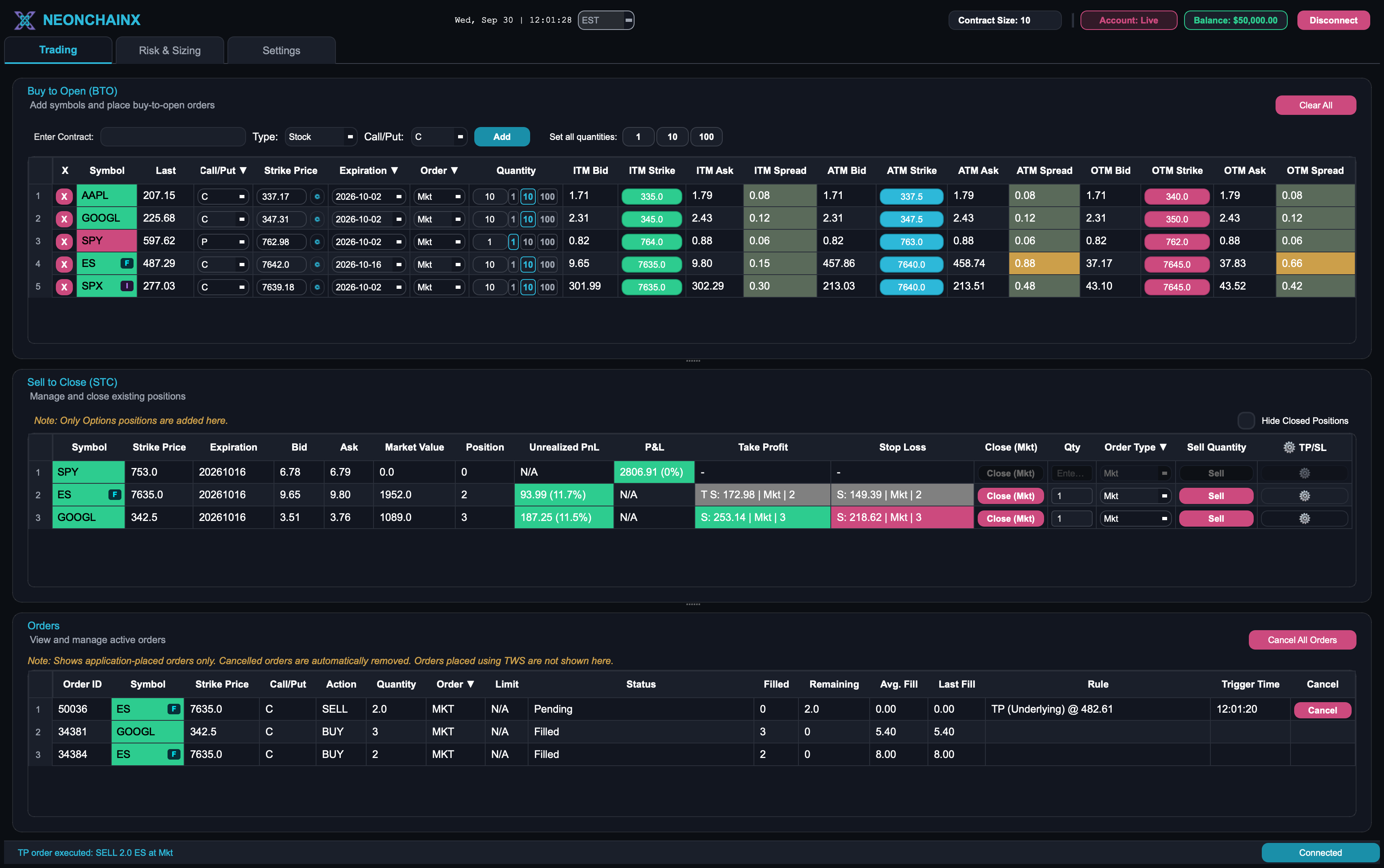
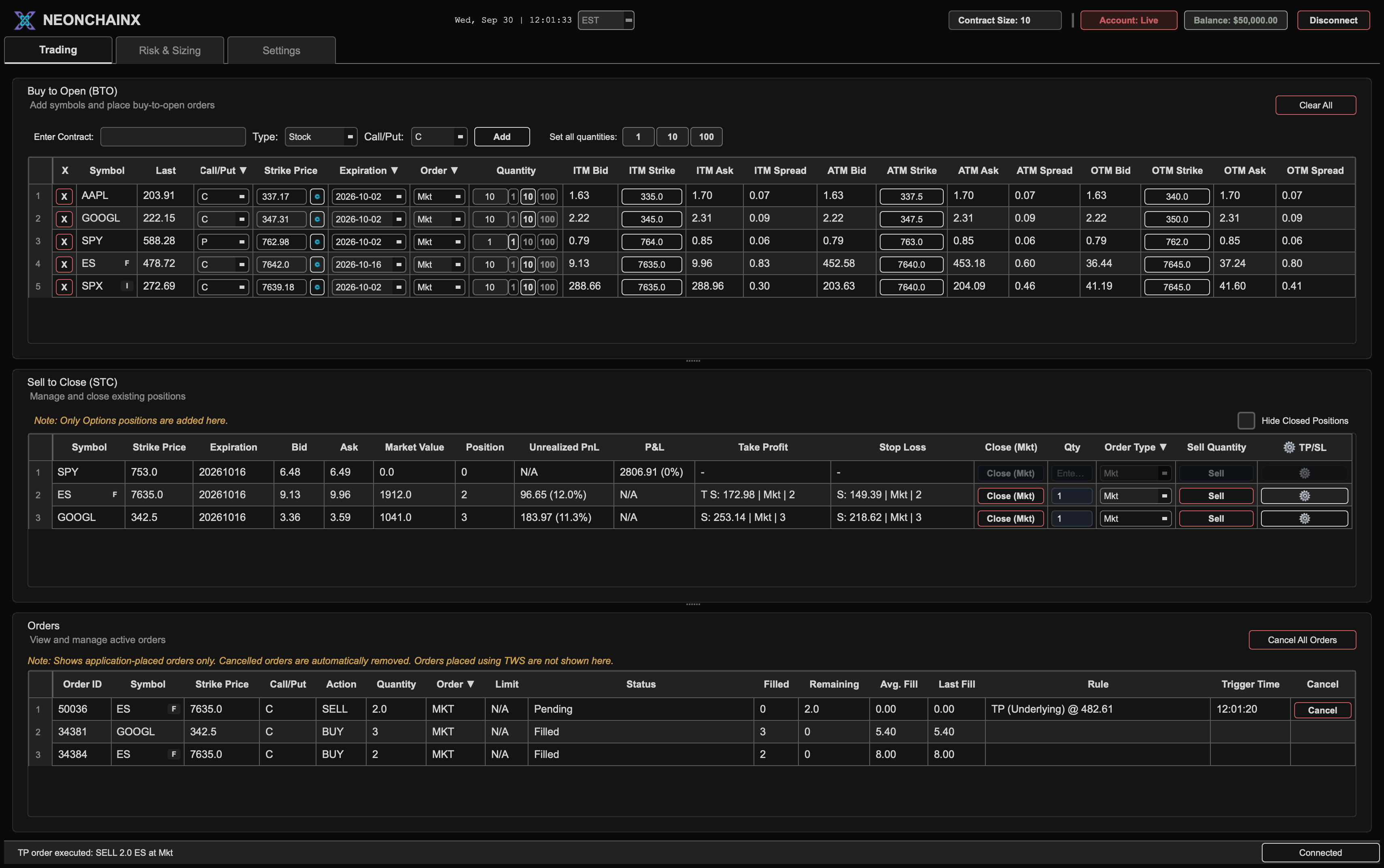
Several symbols already in one table. Click a strike to buy. Close the position in the same window.
Interactive Brokers/Windows macOS Linux/TWS / IB Gateway
The symbols you are scalping stay on one desk
Same window for chains, positions, and orders. Scroll the desk. TWS stays open for login and charts.
Futures options (ES, MES, NQ, MNQ, RTY, CL, and GC). See covered contracts.
Drag a column wider, or hide the ones you don't watch. The desk stays that way the next time you open it.
Preset sizes sit on each row, including your default. Set all quantities changes every symbol in one click.
Multi-symbol chains
Several underlyings. Three strikes around the money.
Each row is a symbol you are watching. ITM, ATM, and OTM bid, ask, and spread stay in the same table.
The symbols you are scalping stay on one desk
Same window for chains, positions, and orders. Scroll the desk. TWS stays open for login and charts.
Futures options (ES, MES, NQ, MNQ, RTY, CL, and GC). See covered contracts.
Drag a column wider, or hide the ones you don't watch. Preset sizes sit on each row, and Set all quantities changes every symbol in one click. The layout stays next time you open it.
Several underlyings. Three strikes around the money.
The spread is visible
Market, mid, or close. No dialog stack.
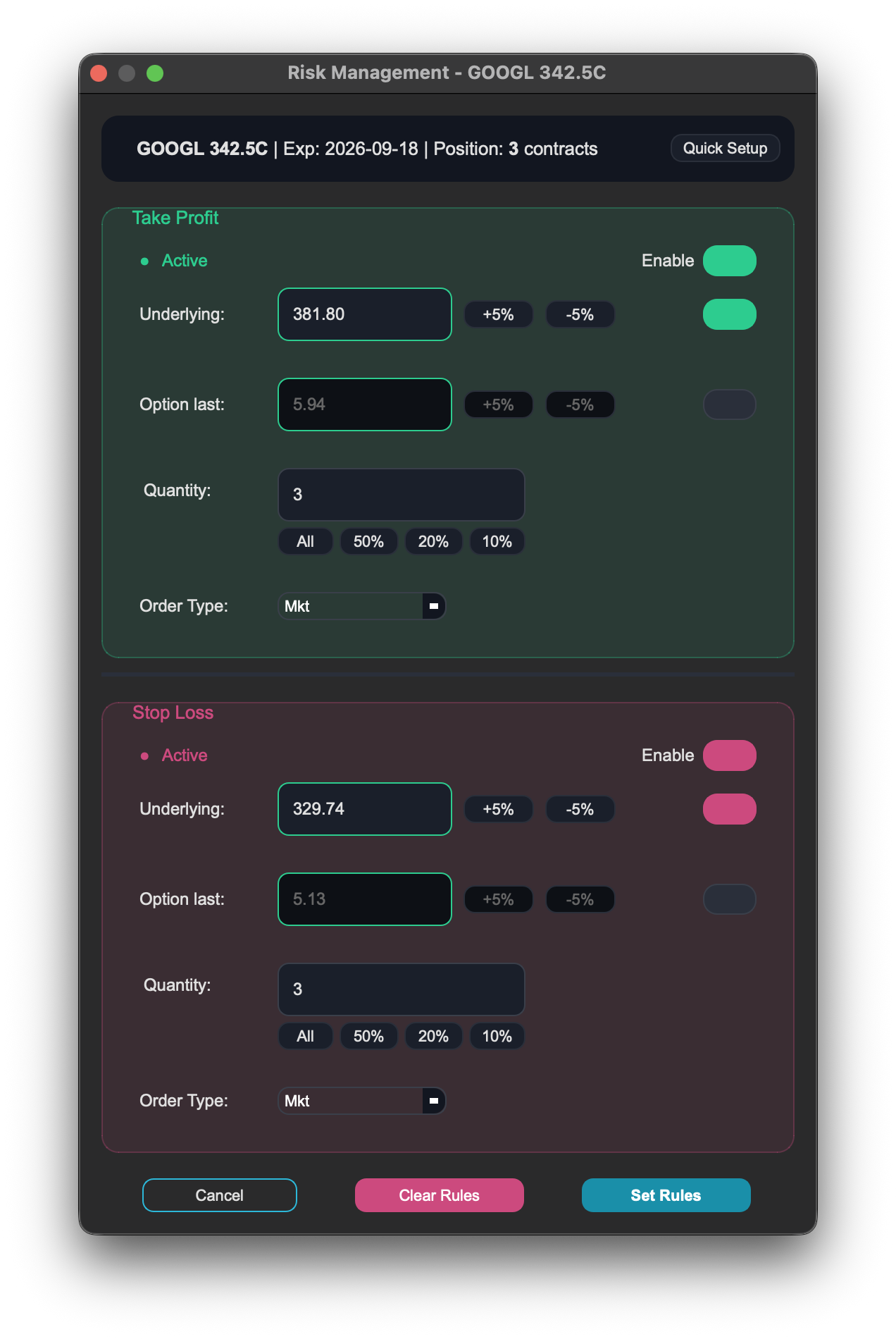
Underlying, option last, or both.
P&L updates as the market moves.
Terminal is the quiet one.
Each row is a symbol you are watching. ITM, ATM, and OTM bid, ask, and spread stay in the same table.
You still run TWS. You stop hunting for the symbol.
TWS is extremely capable. NeonChainX is a focused execution surface for the day-trading loop: the symbols you are watching, the spread you are paying, and the button that sends the order.
Find the symbol, then buy
TWS chain path
- 01Search
- 02Open chain
- 03Select contract
- 04Configure order
- 05Confirm order
- 06Change screen
- 07Manage position
Seven steps. Three moves.
NeonChainX
- Watch
- Click
- Manage
The names stay on the desk. Market, mid, or close is a click. TWS still owns login, charts, and multi-leg.
Connect to the TWS session you already run
NeonChainX talks to TWS or IB Gateway on your machine. Broker credentials never leave that session.
TWS / IB Gateway
credentials stay here
local API 7497 / 7496
NeonChainX
01
Start TWS
Log in to TWS or IB Gateway and enable API access on port 7497 for paper or 7496 for live.
02
Connect NeonChainX
Install the desktop app and point it at that session. Your broker login stays in TWS.
03
Load symbols and trade
Add the names you are watching. Start on paper (TWS 7497). Set TP/SL and place orders from one window.
Setup guides, including TWS API ports and the macOS install fix, are in Docs.
TWS login stays in TWS
Orders go machine to Interactive Brokers through the session you already use. Logs and license checks are a separate path. We do not get your TWS credentials.
On your machine
Your broker login stays local
NeonChainX reaches Interactive Brokers through the TWS or IB Gateway session running on your own machine. Your broker credentials are never sent to us.
A desktop app, not a browser tab
Orders are placed by software running on your machine rather than routed through a web session. Windows, macOS, and Linux builds are available.
Sent to NeonChainX
Subscription checks
Your subscription is checked against your account email and license key so the app can confirm the trial or paid plan.
Diagnostic logs
The app can send diagnostic logs so we can look into issues you report. Privacy policy.
Try the desk for 7 days
Keep TWS running. Put the names you scalp on one screen. $40/month or $400/year after trial if you do not cancel. Cancel in the billing portal. Start on paper.
Need TWS or IB Gateway. Not a multi-leg ticket.
Try 7 Days Free