Take Profit and Stop Loss for IBKR Options (NeonChainX)
Set take profit and stop loss on IBKR options in NeonChainX—dual triggers, real-time validation, built for active traders managing multiple symbols.
NeonChainX includes take profit and stop loss tools built for active options traders—including day traders and scalpers who watch multiple symbols and need fast, rule-based exits on IBKR.
This guide covers configuring automated Take Profit (TP) and Stop Loss (SL) orders in NeonChainX. For broader risk habits while scalping, see Risk management when scalping options.
What are Take Profit and Stop Loss?
Take Profit (TP): An automated order that closes your position when a trigger condition is met, locking in your profits.
Stop Loss (SL): An automated order that closes your position when a trigger condition is met, limiting your losses.
NeonChainX supports two types of triggers for TP/SL orders:
- Underlying Stock Price Triggers: Trigger based on the underlying asset's price (e.g., AAPL stock price)
- Option Price Triggers: Trigger based on the option premium's last traded price (the most recent executed trade price, not bid/ask/mid)
Important: You can enable both trigger types simultaneously. The underlying price trigger is checked first, and if it doesn't trigger, the option price trigger is then evaluated. This gives you maximum flexibility in managing your risk.
Accessing TP/SL Configuration
From the Portfolio Table
- Locate Your Position: Find the position you want to configure in the Sell to Close section
- Click the Gear Icon: Click the ⚙️ TP/SL button in the rightmost column
- Configure Settings: The risk management dialog will open
TP/SL Configuration Dialog
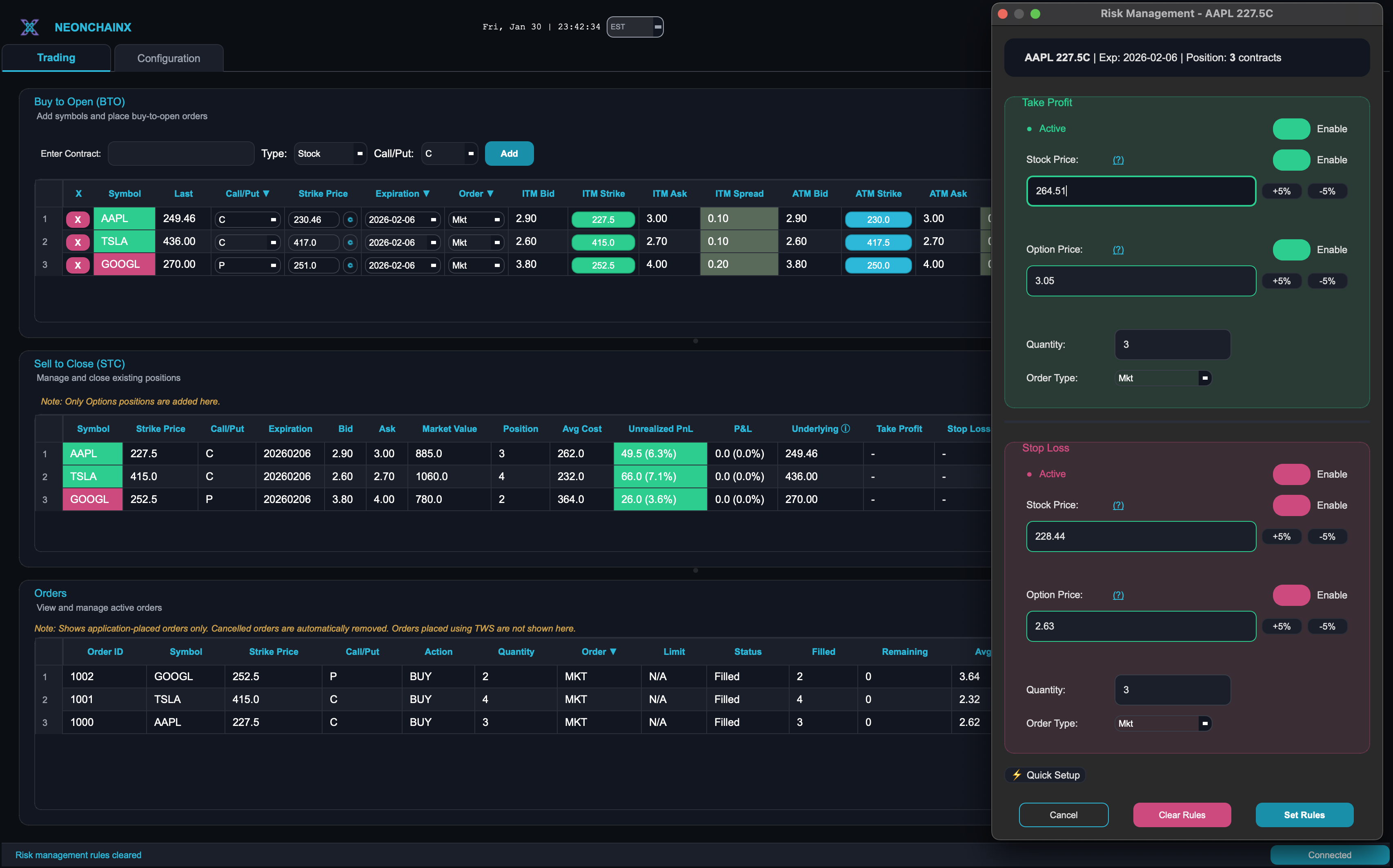
The TP/SL configuration dialog allows you to set up both underlying price triggers and option price triggers. Each trigger type has its own enable checkbox and configuration fields.
Real-Time Validation & Feedback
The dialog provides real-time feedback as you configure your TP/SL levels:
- Color-coded input borders: Input fields show green borders when the entered price is valid and correctly positioned, or red borders when there's an issue
- Price difference indicators: Next to each price input, you'll see the dollar difference and percentage from the current price (e.g., "+$5.20 (+3.4%)")
- Instant warnings: If your TP/SL price would trigger immediately based on current market conditions, a warning message appears to help you avoid unintended executions
- Live price updates: The underlying price displayed in the dialog updates in real-time while the dialog is open, so you're always working with current data
Take Profit Section
Master Enable:
- Check the "Enable" checkbox at the top to activate TP
- Uncheck to disable all TP triggers (fields will be greyed out but values preserved)
TP Configuration - Underlying Price Trigger:
- Enable Underlying Price: Check to activate TP based on underlying stock price
- Price: Set the underlying stock price at which to trigger the TP order
- Quick Adjust: Use +5% and -5% buttons to quickly adjust the price
- Quantity: Number of contracts to close (defaults to full position)
- Order Type: Choose Mkt, Bid, Ask, or Mid for the closing order
TP Configuration - Option Price Trigger:
- Enable Option Price: Check to activate TP based on option premium price
- Option Price: Set the option premium (last traded price) at which to trigger the TP order
- Quick Adjust: Use +5% and -5% buttons to quickly adjust the option price
- Current Option Price: Shows the current last traded price for reference
- Quantity: Number of contracts to close (defaults to full position)
- Order Type: Choose Mkt, Bid, Ask, or Mid for the closing order
Important: Option price triggers use the last traded price (the most recent executed trade price) of the option, not the bid price, ask price, or mid-price. This ensures triggers are based on actual executed trades rather than quoted prices that may not be available.
Stop Loss Section
Master Enable:
- Check the "Enable" checkbox at the top to activate SL
- Uncheck to disable all SL triggers (fields will be greyed out but values preserved)
SL Configuration - Underlying Price Trigger:
- Enable Underlying Price: Check to activate SL based on underlying stock price
- Price: Set the underlying stock price at which to trigger the SL order
- Quick Adjust: Use +5% and -5% buttons to quickly adjust the price
- Quantity: Number of contracts to close (defaults to full position)
- Order Type: Choose Mkt, Bid, Ask, or Mid for the closing order
SL Configuration - Option Price Trigger:
- Enable Option Price: Check to activate SL based on option premium price
- Option Price: Set the option premium (last traded price) at which to trigger the SL order
- Quick Adjust: Use +5% and -5% buttons to quickly adjust the option price
- Current Option Price: Shows the current last traded price for reference
- Quantity: Number of contracts to close (defaults to full position)
- Order Type: Choose Mkt, Bid, Ask, or Mid for the closing order
Using Both Trigger Types
You can enable both underlying price and option price triggers simultaneously:
- Underlying price trigger is checked first: If the underlying stock price reaches your TP/SL level, the order triggers immediately
- Option price trigger is checked second: If the underlying price doesn't trigger, the option price is then evaluated
- Either trigger can activate: Whichever condition is met first will execute the order
- Useful scenarios:
- Option moves independently of underlying (volatility changes, time decay)
- You want protection based on option value rather than stock price
- You want dual-layer protection for critical positions
Automatic Suggestions
NeonChainX provides intelligent suggestions for both underlying price and option price triggers based on your option type and current market prices.
Underlying Price Suggestions
For Call Options:
- Take Profit: +10% above current underlying stock price
- Stop Loss: -5% below current underlying stock price
For Put Options:
- Take Profit: -10% below current underlying stock price
- Stop Loss: +5% above current underlying stock price
Option Price Suggestions
For Call Options:
- Take Profit: +10% above current option premium (last traded price)
- Stop Loss: -5% below current option premium
For Put Options:
- Take Profit: +10% above current option premium (last traded price)
- Stop Loss: -5% below current option premium
Note: Option price suggestions use the same percentage logic as underlying price suggestions, but are calculated from the current option premium rather than the underlying stock price.
Using Suggestions
- Auto-Population: When you open the dialog, all fields are pre-filled with suggested values for both trigger types
- Customize: Adjust the suggested prices to match your risk tolerance and trading strategy
- Quick Start: Use suggestions as a starting point, then fine-tune based on your analysis
- Enable Selectively: You can enable only underlying triggers, only option triggers, or both
Order Types Explained
Market Orders (Mkt)
- Fastest Execution: Orders execute immediately at current market price
- Best for: When you want guaranteed execution
- Consideration: May get filled at less favorable prices during volatile periods
Bid/Ask Orders
- Bid Orders: Close at the current bid price (what buyers are willing to pay)
- Ask Orders: Close at the current ask price (what sellers are asking)
- Best for: When you want to control the exact price
Mid Orders
- Mid-Price: Orders execute at the midpoint between bid and ask
- Best for: Balancing execution speed with price control
- Consideration: May not execute if market moves away from mid-price
Monitoring TP/SL Levels
In the Portfolio Table
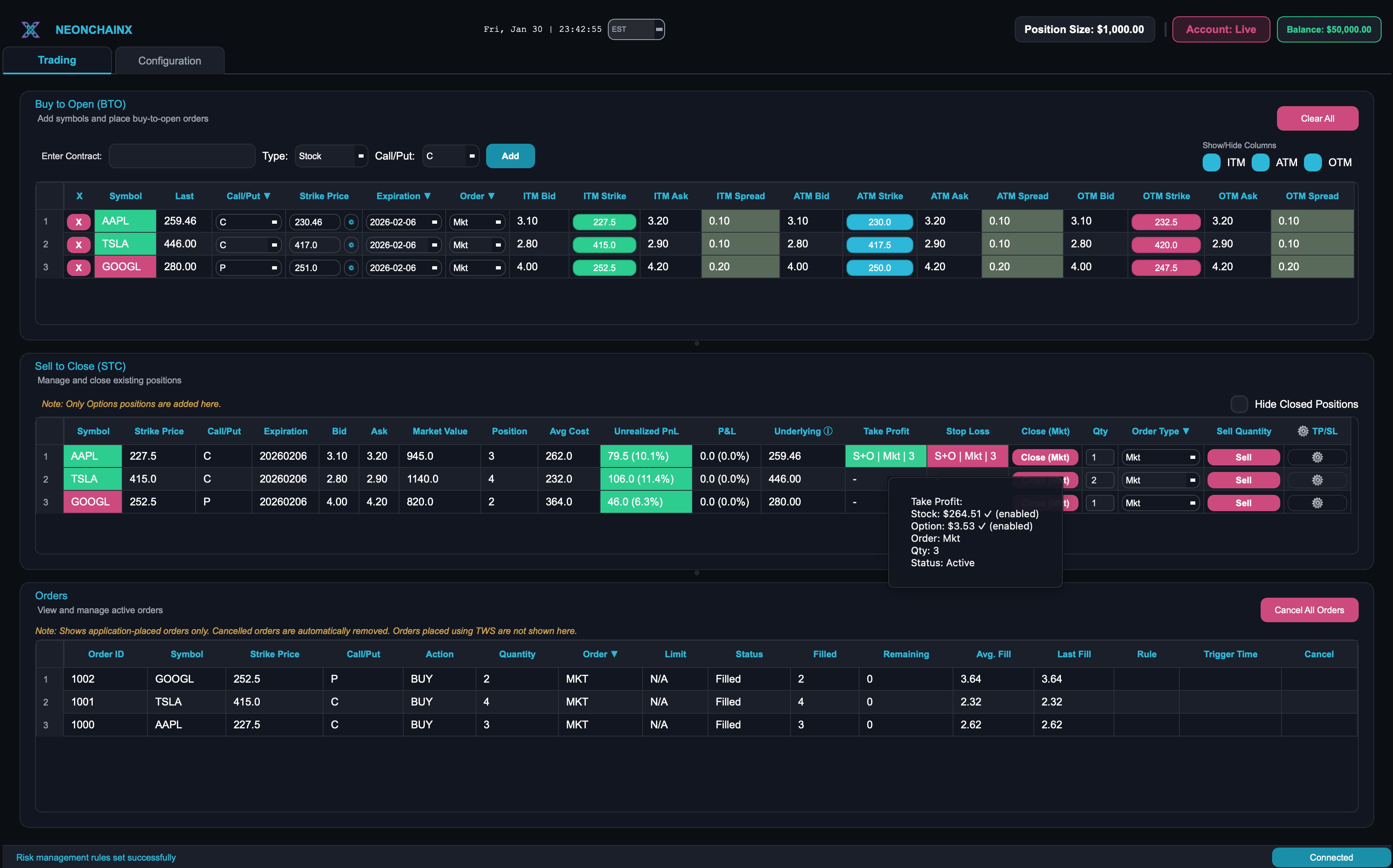
The portfolio table displays your TP/SL configuration for each position:
Take Profit Column: Shows your Take Profit trigger level(s)
- Displays underlying price trigger if enabled
- May also show option price trigger information
- Green background indicates active TP rule
Stop Loss Column: Shows your Stop Loss trigger level(s)
- Displays underlying price trigger if enabled
- May also show option price trigger information
- Red background indicates active SL rule
Underlying Column: Current underlying stock price for reference
Last Column: Current option premium (last traded price) for reference
Visual Indicators
- Green TP Level: Take Profit price (above current price for calls, below for puts)
- Red SL Level: Stop Loss price (below current price for calls, above for puts)
- Grey Background: Triggered or disabled rules
- Real-time Updates: All prices update continuously during market hours
Order Management
Viewing TP/SL Orders
In the Orders Section:
- TP/SL orders appear immediately in the Orders table when triggered
- Shows trigger details like "TP @ 160.05" or "SL @ 158.68"
- Displays trigger time when orders are activated
- Order status updates in real-time as the order is processed by the broker
Modifying TP/SL Rules
- Click Gear Icon: Reopen the configuration dialog
- Adjust Settings: Change prices, quantities, or order types
- Save Changes: New settings replace the previous configuration
- Automatic Updates: Orders are updated automatically
Canceling TP/SL Orders
Individual Cancellation:
- Go to Orders section
- Click "Cancel Order" for the specific TP/SL order
Disable Rules:
- Open TP/SL configuration dialog
- Uncheck "Enable" for TP or SL
- Rules are disabled but can be re-enabled later
Risk Management
Position Sizing:
- Set TP/SL quantities based on your risk tolerance
- Consider partial closes (e.g., close 50% at TP, let rest run)
- Never risk more than you can afford to lose
Regular Review:
- Monitor TP/SL levels as underlying price changes
- Adjust levels based on new market information
- Disable rules when market conditions change significantly
Troubleshooting
TP/SL Not Triggering
Underlying Price Triggers:
- Check Market Hours: TP/SL only work during market hours
- Verify Price Levels: Ensure trigger prices are realistic and achievable
- Price Direction: For calls, TP should be above current price; for puts, TP should be below
- Order Type Issues: Market orders may not execute if spreads are wide
Option Price Triggers:
- Check Option Price Updates: Option price triggers require real-time option price data
- Verify Last Traded Price: Option triggers use the last traded price (most recent executed trade), not bid, ask, or mid-price
- Low Volume Options: Options with no recent trades may not have current last traded price data, which can prevent triggers from working
- Price Validation: Ensure option price trigger is realistic relative to current premium
General:
- Both Triggers Disabled: Check that at least one trigger type is enabled
- Connection Status: Ensure connection to IBKR is active and receiving data
- Position Status: Verify the position still exists and hasn't been manually closed
Orders Not Appearing
- Connection Status: Ensure connection to IBKR is active
- Order Placement: Check that orders were successfully placed
- Refresh Orders: Orders section updates automatically
- Check Order Type: Some order types may take longer to appear
Unexpected Executions
Underlying Price Triggers:
- Gap Movements: Large overnight gaps may trigger orders at unexpected prices
- Market Volatility: Fast-moving markets may cause slippage
- Order Type: Market orders execute at best available price
Option Price Triggers:
- Volatility Spikes: Sudden changes in implied volatility can cause option prices to move independently
- Time Decay: Option prices can change significantly even if underlying stays flat
- Low Liquidity: Options with wide spreads may execute at less favorable prices
- Last Traded Price Lag: If option hasn't traded recently, the last traded price may be stale, which can delay or prevent triggers from activating
- Price Source: Remember that triggers use the last traded price (actual executed trades), not bid/ask quotes, so triggers only activate when there's actual trading activity
Best Practices:
- Use option price triggers for positions where option value is more important than underlying price
- Use underlying price triggers for directional plays where stock movement is primary driver
- Consider using both triggers for maximum protection on critical positions
- Regularly review and adjust trigger levels as market conditions change
Tips
Partial Position Management
- Set TP for 50% of position, let remaining 50% run
- Use different TP levels for different portions
- Scale out of positions gradually
Integration with Manual Trading
- TP/SL work alongside manual position management
- You can manually close positions even with active TP/SL rules
- Manual closes automatically disable corresponding TP/SL rules
Choosing Trigger Types
- Underlying Price: Best for directional trades where stock movement drives option value
- Option Price: Best when volatility or time decay are primary factors
- Both Triggers: Maximum protection for important positions
Start with the suggested levels, customize based on your strategy, and regularly review your risk management settings to optimize your trading performance.