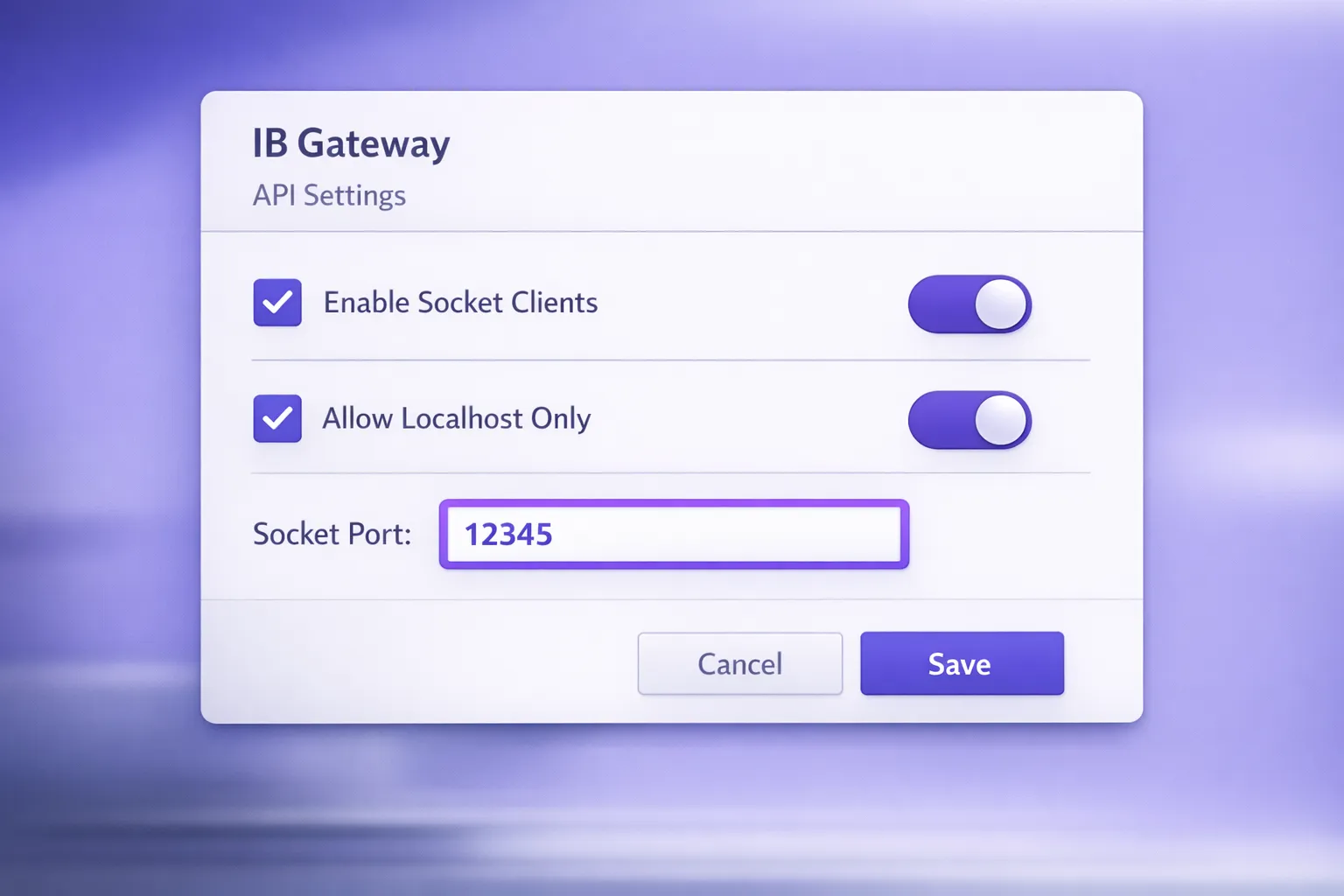
Interactive Brokers IB Gateway: Setup for Low Latency
Featured image: Interactive Brokers IB Gateway: Setup for Low Latency
If you trade options fast (scalps, quick hedges, rapid spread adjustments), your bottleneck is often not “Interactive Brokers is slow”, it’s your local stack: platform UI overhead, API settings, network jitter, and how IBKR’s session is being managed.
Done right, Interactive Brokers IB Gateway is one of the cleanest ways to get low latency options execution through IBKR because it’s designed to run without the heavy Trader Workstation interface. Below is a practical setup guide aimed at traders who care about milliseconds and stability.
Why IB Gateway matters for low latency options trading
IB Gateway is IBKR’s lightweight application intended primarily for API-driven trading. Compared with running full TWS, Gateway typically reduces UI load and background work, which can translate into a more consistent, “snappier” experience for fast options trading workflows.
For an options trading platform that submits frequent orders or needs fast order acknowledgements (especially during volatility spikes), the main benefits are:
- Less platform overhead: fewer UI components competing for CPU time.
- Cleaner operational mode: you run it as “infrastructure” for your options trading software.
- Direct IBKR integration: you connect straight to IBKR via TWS/IB Gateway, without intermediaries.
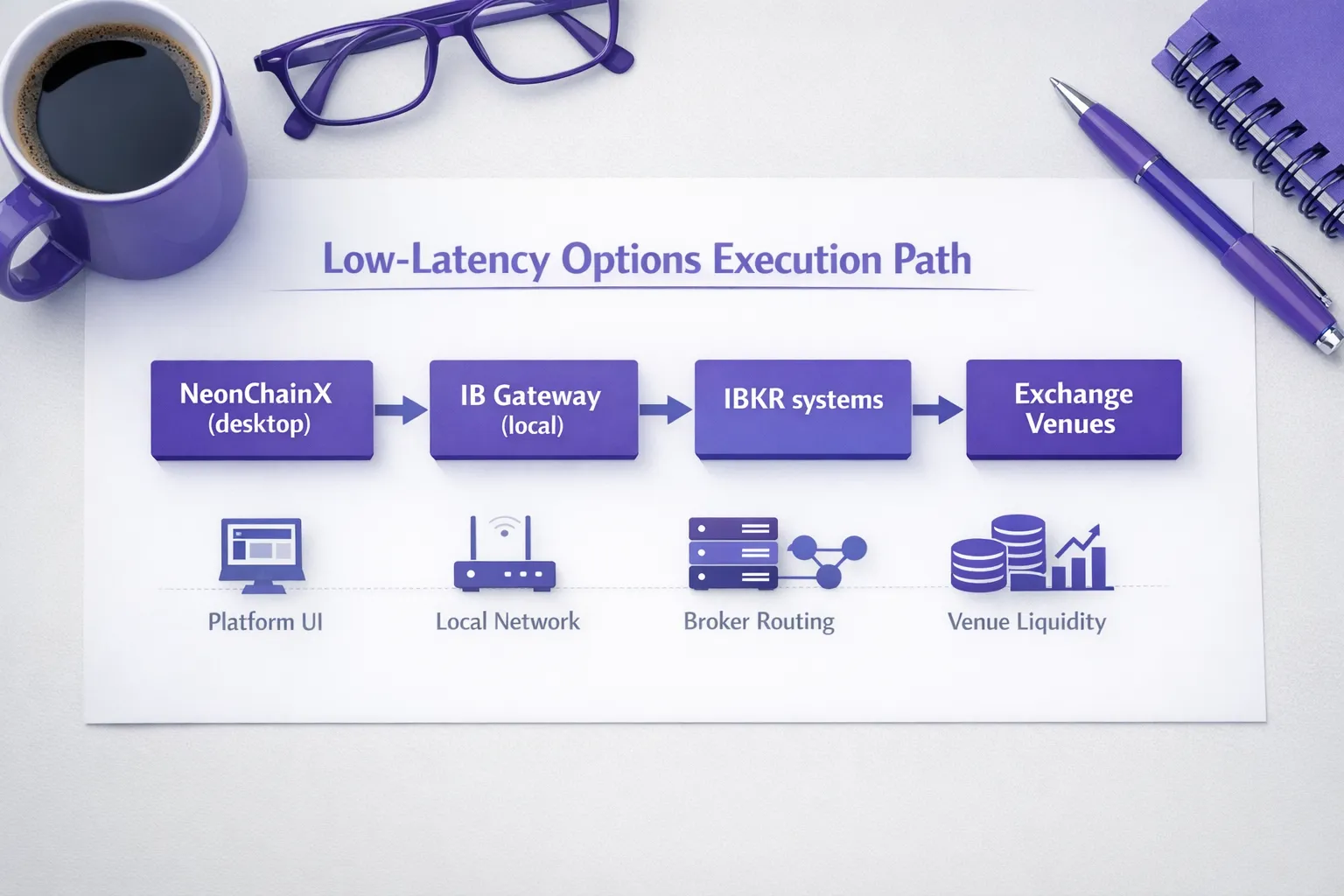
NeonChainX is built around that philosophy: a desktop, options-first workflow, designed to keep decision and execution paths short. (NeonChainX is also built to add minimal latency on the client side, which matters when you’re iterating quickly.)
IB Gateway vs TWS: what to use (and when)
Most active traders end up with one of these patterns:
Use IB Gateway when your priority is execution speed and consistency
This is the most common choice for:
- Scalpers and day traders
- Traders running multi-chain options view layouts who want fast interaction
- Anyone using API-driven tools or an Interactive Brokers options trading platform like NeonChainX
Use TWS when you need the built-in UI tools
TWS can make sense if you rely on IBKR’s built-in charting, scanners, news, and manual order workflows. The tradeoff is that TWS is heavier, and that extra load can show up as small delays, especially on older machines or when markets are busy.
If you do choose TWS, you can still apply most of the low-latency principles below (network, OS tuning, API settings), but Gateway is usually the cleaner baseline.
Before you start: two “hidden” prerequisites that affect speed
1) Market data subscriptions
For many options traders, “latency” complaints are actually quote issues: delayed data, incomplete options quotes, or throttling. Make sure your IBKR account has the market data permissions and subscriptions you need for your products and venues.
IBKR’s own docs and account tools are the authoritative place to confirm this:
2) A stable, wired network
If you care about options trading with low latency, prioritize consistency over raw bandwidth:
- Use Ethernet (not Wi‑Fi)
- Avoid VPNs while trading (unless required for security policy)
- Keep your router/modem firmware updated and avoid bufferbloat-prone setups
Even “small” Wi‑Fi jitter can be larger than the latency improvements you get from any platform optimization.
Step 1: Install IB Gateway the right way
Download IB Gateway from IBKR’s official site and install it on the same machine you use for trading (this removes an extra hop).
- IB Gateway download (Interactive Brokers)
Practical notes for low latency trading:
- Prefer a stable release track if you trade actively. Cutting-edge builds can introduce unexpected behavior.
- Keep Gateway updated, but avoid updating right before a critical trading session.
- Reboot after install updates so you start from a clean state.
Step 2: Configure API access in IB Gateway (critical)
To use Interactive Brokers IB Gateway with an options trading tool, you must enable API connections inside Gateway.
The exact menu labels can vary slightly by version, but in general you’re looking for settings under something like Configure -> Settings -> API.
These are the settings that most directly impact connectivity, safety, and predictable behavior.
| Setting (IB Gateway / TWS API) | Low-latency friendly default | Why it matters |
|---|---|---|
| Enable socket/API clients | Enabled | Required for any options trading software connection. |
| “Allow connections from localhost only” | Enabled (recommended) | Reduces attack surface and accidental remote connections. If you must connect remotely, use trusted IP rules + firewall. |
| Socket port | Use a known, fixed port | Your platform must match it. Common defaults differ between TWS and Gateway and can vary by install, confirm in your settings. |
| Read-only API | Disabled for live trading | Read-only blocks order placement. Keep it enabled only for monitoring tools. |
| Trusted IPs (if available) | Restrictive | If you are not localhost-only, explicitly whitelist your client machine(s). |
Two practical points that prevent “mystery lag”:
- Do not change ports frequently. Pick a port, document it, and keep it stable.
- Avoid running multiple API trading apps unless you know exactly how you want to split client IDs, market data subscriptions, and order ownership.
Step 3: Pick clean connection parameters (host, port, client ID)
Most IBKR API connections require:
- Host: often
127.0.0.1(localhost) if NeonChainX and Gateway are on the same machine - Port: whatever you set in Gateway API settings
- Client ID: an integer identifier used to separate sessions
Low latency guidance:
- Keep one primary Client ID for your execution platform.
- If you run additional tools, do not reuse the same Client ID unless you know the implications.
- If you are troubleshooting intermittent disconnects, simplify first: one machine, localhost, one client.
For NeonChainX-specific connection steps, use the product’s setup guide and then return here to optimize for speed:
Step 4: Tune IB Gateway session behavior for stability
Low latency options execution is not just fast, it’s predictable. A “fast” setup that disconnects mid-session is worse than a slightly slower setup that stays connected.
Focus on:
Keep the machine awake and the network stable
- Disable sleep while plugged in
- Disable “energy saver” network options (especially on laptops)
- Use a High Performance power plan (Windows) or prevent App Nap / sleep (macOS) for your trading setup
Avoid competing heavy workloads
During the trading session:
- Close browsers with many tabs (especially video-heavy sites)
- Pause cloud backup/sync tools if they spike disk/network
- Avoid running large downloads or OS updates
The goal is to keep CPU scheduling and network latency consistent, not just fast on average.
Step 5: Reduce self-inflicted latency in options workflows
Even with a perfect IB Gateway setup, traders often create delays through workflow choices. If you place many orders quickly, these are common friction points.
Too many quote streams at once
Options chains are data-heavy. If you request streaming quotes across many expirations and strikes, you can overload your own display or run into IBKR pacing limits.
A practical approach for active trading:
- Stream the strikes/expirations you are actively trading
- Keep deeper chains on-demand
- Prefer a multi-chain options view that is selective and scannable, rather than “everything at once”
Over-complicated order staging
Every extra dialog, confirmation step, or manual bracket entry is latency. If your strategy relies on rapid entries with pre-defined exits, use tooling that reduces clicks.
NeonChainX is designed for this style of execution with:
- One-click automation for take profit and stop loss rules (TP/SL)
- Real-time position monitoring and real-time options P&L tracking
- Clear options chain visualization for fast selection
If you want a deeper, execution-focused playbook (beyond Gateway configuration), this guide complements the setup work here:
Step 6: Security settings that keep speed without creating risk
“Low latency” should not mean “open ports to the internet.” A secure setup can still be fast.
Recommended baseline:
- Keep API connections localhost-only if possible
- If you must connect from another machine on your LAN, use:
- Trusted IP allowlisting (if available)
- OS firewall rules (allow only that IP and port)
- No port forwarding from the public internet
Security incidents are the ultimate latency event: they stop trading entirely.
Step 7: How to verify your IB Gateway setup is actually low latency
Don’t guess. Measure.
Here are simple checks that work for most active options traders:
| What to measure | How to check (practical) | What “good” looks like |
|---|---|---|
| Local network stability | Ping your router during market hours | Low jitter and near-zero packet loss (consistency matters more than minimum ping). |
| Platform responsiveness | Time from click to order appearing as submitted | Should feel immediate and repeatable, even under load. |
| Order acknowledgement consistency | Compare multiple similar orders during liquid conditions | Narrow variance is the goal. Big swings often indicate local CPU/network issues. |
| Data responsiveness | Compare quote updates across a small, focused chain | Fast updates for the strikes you stream, without freezing. |
If your measurements are inconsistent, troubleshoot in this order:
- Wired network and power settings
- Gateway API settings (ports, localhost, read-only)
- Too many quote streams or too many connected API clients
- Machine resources (CPU spikes, memory pressure)
A low-latency “known good” checklist for Interactive Brokers IB Gateway
Use this as a final pass before your next session:
- IB Gateway installed and updated from IBKR official source
- API/socket connections enabled
- Host set to localhost when possible
- Fixed socket port confirmed in Gateway and matched in your options trading software
- Read-only API disabled for live execution
- Machine set to High Performance (no sleep), wired Ethernet, no VPN
- Only the quote streams you actually need are active
- One primary API client session for execution (extra tools separated by client ID)
If you want to put this into practice with a purpose-built fast options trading platform for Interactive Brokers, start with NeonChainX and then apply the optimizations above: